
Working remote?
OSU Center for Health Sciences I.T. has tools to offer eligible staff and faculty for working remotely and staying productive, but it is important to keep the following in mind to ensure any work done outside the CHS network remains secure.
Even when working remotely, consider OSU's Appropriate Usepolicy as well as state and federal laws likeFERPAandHIPAA.
Security best practices
When working outside the network it is critical to ensure whether you are using an OSU device or a personal device that any data you are handling is saved on to our secure network group shared drive or via OneDrive/SharePoint through Office 365.
OSU devices are deployed with malware and Antivirus software however, if you are using a personal device to connect to the OSU CHS network , we highly recommend you use an antivirus software.
Before you start working remotely
To ensure you are able to get to all resources needed please contact our I.T. Helpdesk before you start working remotely. Some processes require proper setup and assistance from I.T.
Please contact I.T at 918-561-1800 Option 2 or email at chs.helpdesk@okstate.edu
Services provided:
- VPN Setup (No longer required for Epic)
- Duo Multi-factor Authentication Setup
- Drive Mapping
- Phone forwarding and voicemail access
- Access to other applications/resources (some of these must be requested and approved, e.g. zoom, remote desktop, etc)
- Access to clinical applications/resources
Resources to protect/maintain your personal device
Acceptable Operating Systems:
- Windows 10 (Please contact our CHS Helpdesk to ensure you have the latest version)
- macOS (Please contact our CHS Helpdesk to ensure you have the latest version)
- Chrome OS (Please contact our CHS Helpdesk to ensure you have the latest version)
- Apple iOS (Please contact our CHS Helpdesk to ensure you have the latest version)
Antivirus software options:
- Bitdefender https://www.bitdefender.com
- Webroot https://www.webroot.com
- McAfee https://www.mcafee.com
- ESET https://www.eset.com
- Malwarebytes https://www.malwarebytes.com
- Norton https://www.norton.com
- SOPHOS Home https://www.sophos.com
How to check if Windows/Mac are set to auto update:
Windows-
https://www.tech-recipes.com/windows/how-to-turn-on-and-off-automatic-updates-in-windows-10/
- Select ‘Start’ button
- Select ‘Settings’
- Select ‘Update & Security’
- Select ‘Windows Update’
- Select ‘Advanced Options’
- Select ‘Automatic’ under choose how updates are installed
Mac-
https://www.techrepublic.com/article/how-to-turn-on-automatic-updates-in-macos/
- Click on the Apple menu in the upper left of the Finder bar.
- Click on System Preferences.
- Click on App Store.
- Click on Automatically Check For Updates.
- Select the options you wish to enable.
How to enable File Vault:
https://support.apple.com/en-us/HT204837
- Select the Apple menu
- Select ‘Preferences’
- Select ‘Security and Privacy’
- Select the FileVault tab
- Select the lock, then enter the administrator username and password
- Click ‘Turn on FileVault’
How to enable BitLocker:
https://techcult.com/enable-bitlocker-on-windows-10/
- Must have Pro, Enterprise, or Education Edition of Windows
- Press Windows key + R to open the Run Command box, type ‘control’ or ‘control panel’ and press enter to launch the control panel.
- Select ‘Bitlocker Drive Encryption’
- Select the drive and click ‘Turn on Bitlocker’ follow the steps
OTHER APPLICATIONS AND RESOURCES
Voice communication
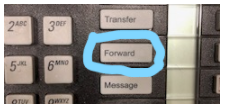
You will need to be at your office or desk phone to forward calls.
Remember that voice mails willNOTbe forwarded to the destination phone.
- Setting up Call Forwarding (Cisco VoIP)**VOIP ONLY-Calls cannot be forwarded to long distance numbers to include mobile devices**
- Setting up Call Forwarding (Non-VoIP)
- Voicemail access**To have your voicemail PIN reset please contact the CHS Helpdesk 918-561-1800**

Virtual Private Network - VPN
VPN is needed if you must access the CHS group drives or if you need to connect to your office computer via RDP (Please note that RDP is only allowed to certain computers on campus and for security reasons, it is restricted on most CHS computers).
- Install OSUVPN for Mac (for Academic Faculty/staff)
- Install OSUVPN for Windows (for Academic Faculty/staff)
- Install TulsaVPN Mac or Windows (for Clinical Faculty/Staff)
NOTE: If you are running Catalina MacOS system, please contact HIT first before installing the tulsavpn.
GroupDrive
How to map to G:\ OR H:\ drives (Most OSU laptops are already deployed with G and H drives mapped, when you connect to the VPN, you will be able to connect to your mapped G: and/or H: but below are videos explaining how to manually map your drives.
Okstate Web Resources
Duo Multi-Factor Authentication
OSU CHS has implemented multifactor authentication service via DUO Security. DUO is enabled on a variety of Okstate applications such as banner, okcorral, myOkstate, TulsaVPN, etc.
All CHS staff must use DUO to access these resources. To change settings on DUO or add a device (if you have replaced your phone or wanted to add an authentication method)
Log on toDUO Portal
Messaging
Keep in touch with your coworkers while working remotely by using Skype for business or Microsoft Teams
Skype: https://it.okstate.edu/services/microsoft-skype/index.html
Teams: https://it.okstate.edu/services/microsoft-teams/index.html#gs
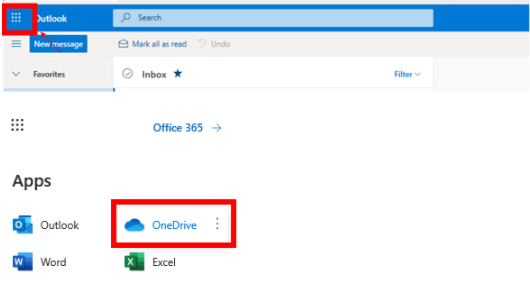
OneDrive/Sharepoint and other Office 365 Apps
Video Conference
Zoom: If you have been granted a zoom license to be able to conduct lectures via video conference, you may be able to log on and start your zoom conference as long as you have internet connectivity.
https://osuchs.zoom.us/
Clinical applications
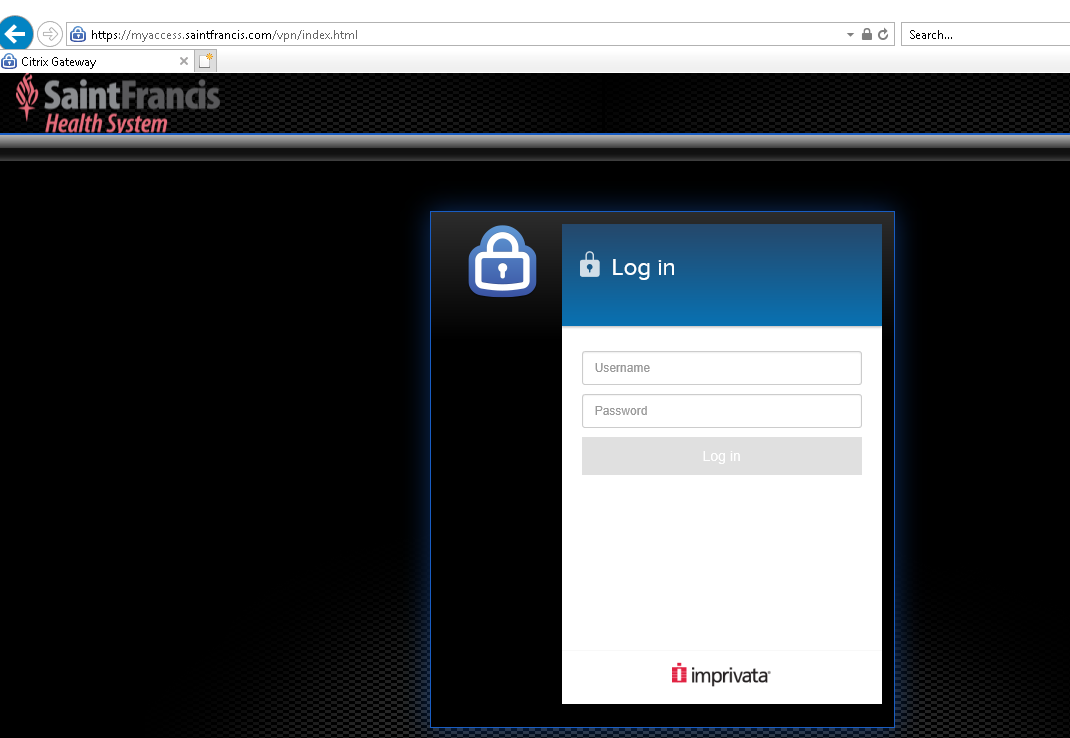
NOTE: VPN is not required to access Epic remotely. If you are attempting to access your work computer or shared network resources such as a department Group Drive or your H: drive, then a VPN connection will be required. For VPN , see videos below:
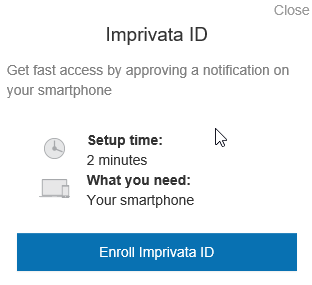
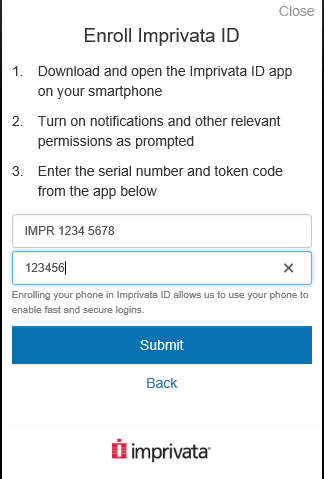
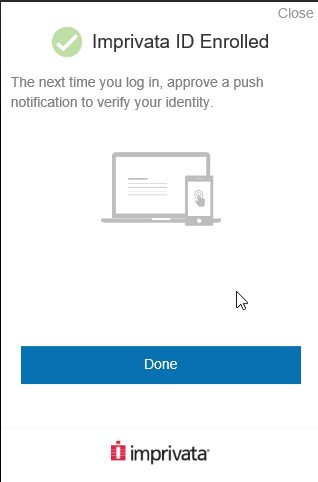
- OSU Medicine Remote Two Factor Authentication Self Enrollment
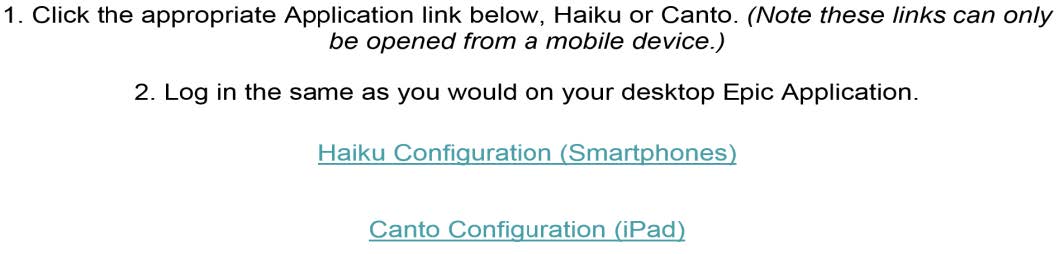
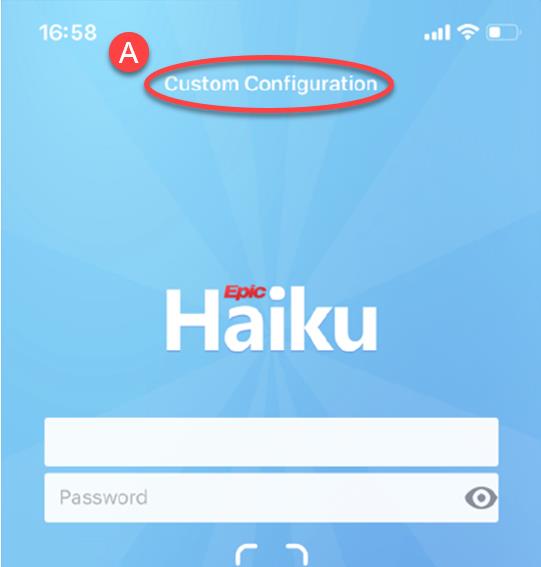
- Install Haiku/Canto on your mobile device
- How to install Citrix Workspace for Windows for CHS
- TULSAVPN Install
We will post additional information as necessary.