
Room Reservation System
To make a reservation, visit our Room Reservation Portal.
Please see instructions below on how to make a reservation:
- Click the blue “Sign In” Box near the top of the page
- Use your OKEY credentials to sign into the system
- On the left menu bar, choose create a reservation and follow the prompts to create your reservation.
- You’ll be able to browse by locations and see which rooms are free/busy.
- On the main section of the page, select which reservation template you wish to use (see below for descriptions; you can also hover over each for a description on the application).
- Click book now on the desired reservation template.
- Select your date and confirm time.
- View the available rooms based on your search criteria.
- Follow the prompts
- Chose next step on the upper right corner of the page
- Services (if you should need IT support, Security to unlock doors or Facilities setup) – please indicate here
- Complete the remaining fields and hit create reservation
- You’ll be redirected to a “Reservation Created successfully page”
Reservation Templates:
- IT Support Request – Rooms not in EMS: This template is a “service” only request for IT Support. You will use this if you need event or meeting startup support for a room that is not in EMS.
- Request a Meeting Space: This template is used if you are requesting a conference room for a meeting.
- Request an Event Space: This template is used if you are requesting one of the common event spaces for your event. This template goes through an approval process before your reservation is confirmed
- Reserve a Student Space: This template is used for booking student study spaces and student conference rooms. This is the only template that students can see.
- Submit Course Reservations: This template is used for making course reservations.
Students have the option of downloading the mobile app to reserve their student spaces.
- Download the Direct Spaces app (white background with green logo)
- Open app and enter the application identifier
- Application identifier: ems.okstatechs
- Click let’s go
- Login with your Okey credentials
- Create a new reservation directly on your mobile device
- Create Event will be your default window
- Search available rooms by adjusting the needed filters
- You can search by date, capacity, building, etc.
- Once you’ve entered your criteria, click search
- In the availability grid, select the room by clicking a square that reflects the desired start time, then continue.
- Complete the required details on the next page and choose submit event to finish creating your reservation.
If you run into issues or have any questions, please contact Destry Smith.
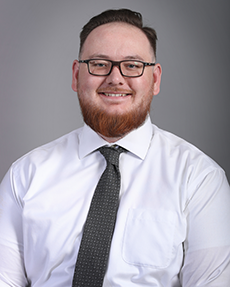
Destry Smith
Reservation Operations Coordinator
918-561-1553